Editing animation clips
Use an Animation Clip to combine Animation Data resources into more complex animations. You can reuse the same Animation Data resources in different Animation Clip items. Use an Animation Child Clip to create hierarchical animations.
To edit an animation clip or animation data items, in the Library > Animations > Animation Clips double-click the animation clip or animation data item you want to edit. Animation Clip Editor opens.
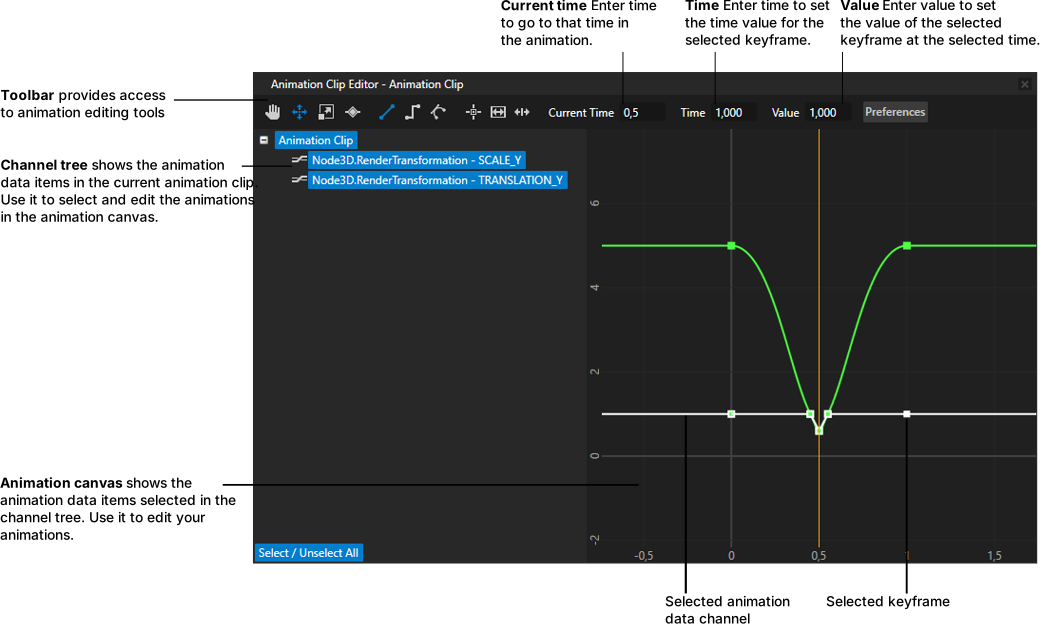
Animation clip editor toolbar
| Tool | Description | Shortcut key |
|---|---|---|

|
Pan the animation canvas by clicking and dragging the canvas. |
S
|

|
Select and move the animation channels and keyframes. |
V |

|
Scale more than one selected keyframe:
|
X |

|
Add keyframes after selecting at least one animation channel. | I |

|
Linear interpolation creates a linear transition between keyframe values. See Changing the interpolation mode between keyframes. | |

|
Step interpolation keeps the value of the current keyframe right until the next keyframe when its value is instantly taken into use. See Changing the interpolation mode between keyframes. | |

|
Bezier interpolation interpolates the values between keyframes using the Bezier polynomial. See Changing the interpolation mode between keyframes. | |

|
Toggle snap for animation canvas. When snapping is on, the cursor moves only to the points on the grid you can configure in > User Preferences > Animation Editing tab. Snapping grid is different from the grid in the animation canvas. | |

|
Scale the animation canvas so that all keyframes are visible. | |

|
Set the animation clip start and end times to the first and last keyframes in the animation clip editor. |
Copying and pasting animation items
When copying an item, the default paste performs a deep copy: all the items under the copied item are duplicated.
Items in Animations can have the same children under many parents. To copy these items you can use:
- Paste as Instance. Use Paste as Instance when you want to create just a link to the item you want to copy. For example, if you have an animation clip with Jumpy animation, when you copy the Jumpy animation to another animation clip, Paste as Instance creates just the link to Jumpy animation.
To paste an item as instance, right-click the item and select Paste as Instance. - Paste Item and Instance Children. Use Paste Item and Instance Children when you want to create a new copy of the root item and only links to its children. For example, if you have a Hippie animation clip with animation, when you copy the Hippie animation clip, Paste Item and Instance Children creates a new animation clip and only links to the animation. When you change Hippie animation clip, the changes do not affect the new animation clip, because Hippie animation clip and the new animation clip are two different items. However, if you change the animation under Hippie animation clip, the changes affect the animation under the new animation clip, because they are instances of the same item.
To paste an item and create instances for its children, right-click the item and select Paste Item and Instance Children.
Removing animation items from their parents
When you want to remove an item from one parent (for example, Animation Data from an Animation Clip), but want to keep it under the other parents, right-click the item you want to remove and select Remove from Parent.Kanzi Studio removes the reference, but preserves the item in question in its library.
See also
Tutorial: Create keyframe animations
Creating animations and timelines using the Kanzi Engine API
